Overview
The user guide covers the fxquinox web app from a user's point of view: finding your way around, working through tasks, and reviewing versions. To install and run fxquinox see Get started; to configure the studio see the admin guide.
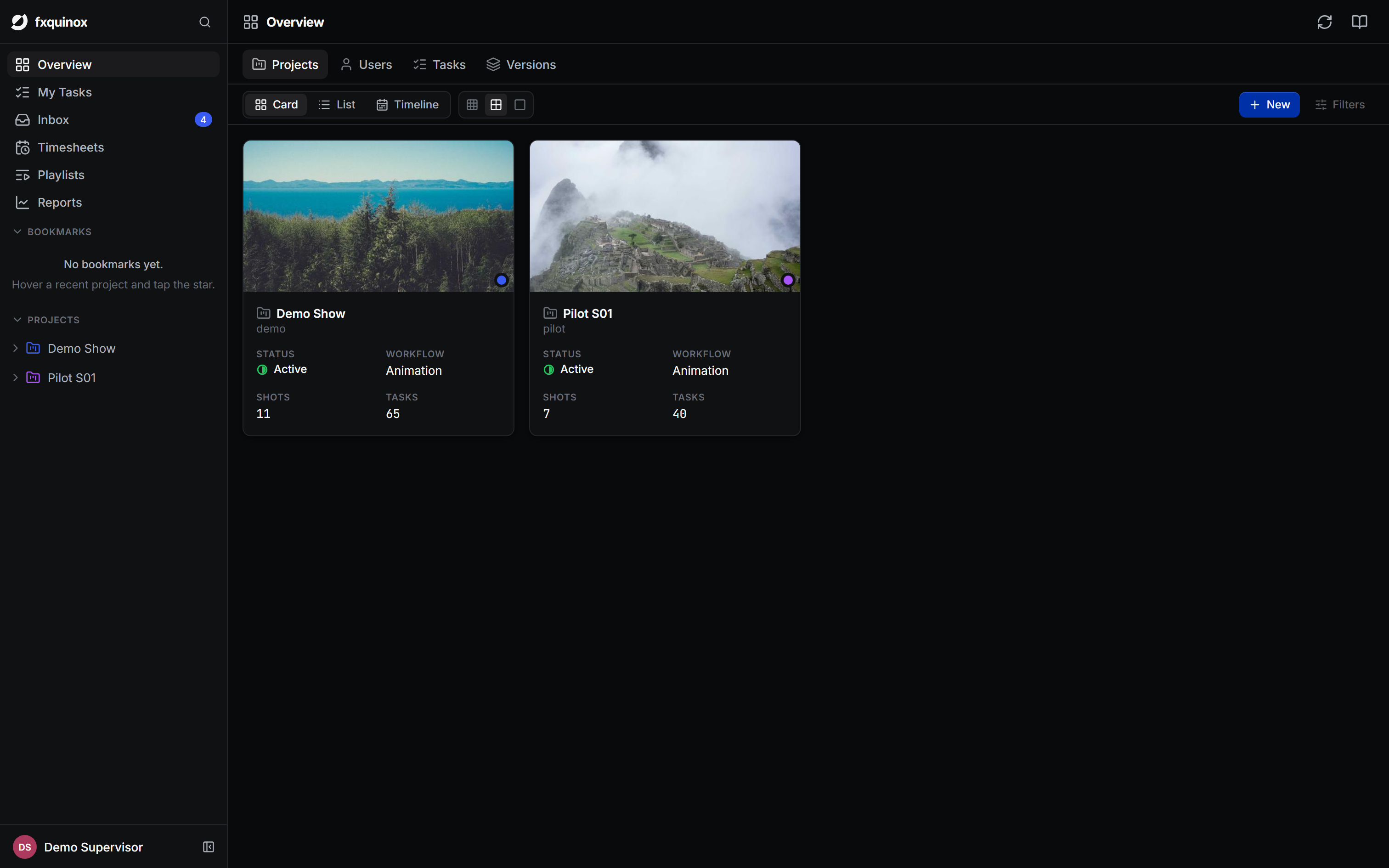
The workspace
The app has three parts:
- The left rail - your home base. It holds Overview (the dashboard), My Tasks, your Inbox, Playlists, Timesheets, Reports, your Bookmarks, your recent projects, and your account menu at the bottom.
- The top bar - the tabs and tools for whatever you're looking at. On the dashboard these are Projects, Users, Tasks and Versions, plus the view switcher, Filters, New and Settings.
- The main area - the grid, board, timeline or cards you're working in.
One model, many views
Most screens show the same records in different shapes. Use the view switcher (Card / List / Timeline) in the top bar to flip between them without losing your place.
Finding things
- Command palette - press Ctrl+K to search across the whole studio (projects, shots, assets, tasks, people) and jump straight there. Results are grouped by type; use the arrow keys to navigate and Enter to go.
- Filters - the Filters button narrows the current view by status, step, assignee, dates and any field. See Views and filters.
- Bookmarks - star a project to pin it under Bookmarks in the left rail.
- Inbox - mentions, assignments and status changes on records you watch land in your Inbox. See Notifications and watching.
Where to go next
-
Open a project and navigate its sequences, shots and assets.
-
Statuses, assignees, dates and the Gantt.
-
Your personal board, schedule and timesheet.
-
Production dashboards: status, bid vs logged, workload, hours over time.
-
Versions, playlists and review
Published versions, playlists, the review player, compare modes and share links.
-
Mentions, assignments, status changes and the records you follow.
-
Card, list, timeline, filters, bulk actions and saved views.
-
Configure statuses, steps, schemas, users and branding.