My Tasks
My Tasks in the left rail is your personal view of everything assigned to you, across every project.
Views
Switch between four shapes with the toggle in the top bar:
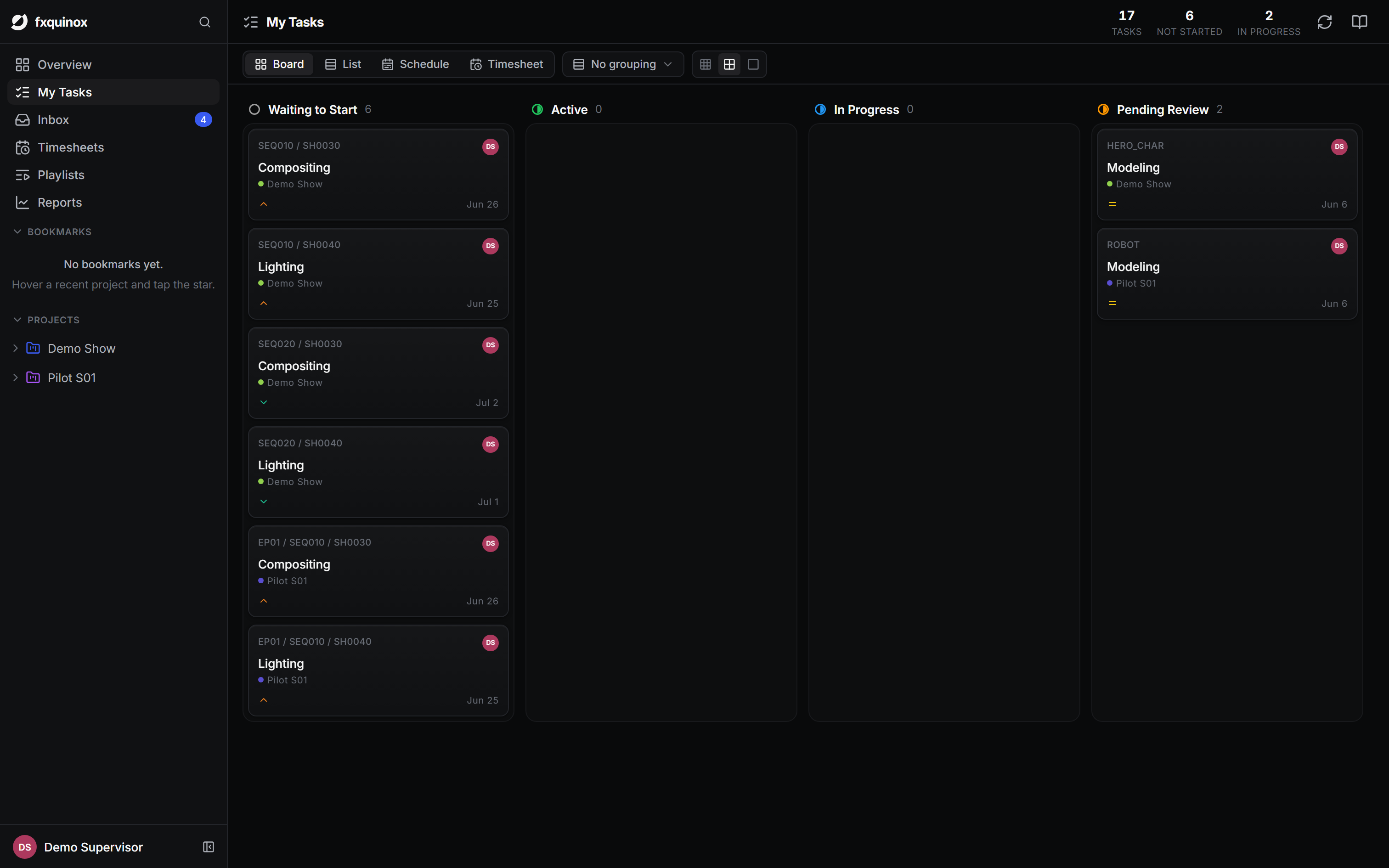
- Board — cards in status columns. The columns are always the task statuses (Waiting to Start, In Progress, Pending Review, Final, and so on). Use swimlanes to split the board horizontally by Step, Priority or Project without changing what the columns mean.
- List — a compact, sortable table of the same tasks. Group by status, step, priority, project or none.
- Schedule — your tasks laid out against their dates, so you can see what's due when.
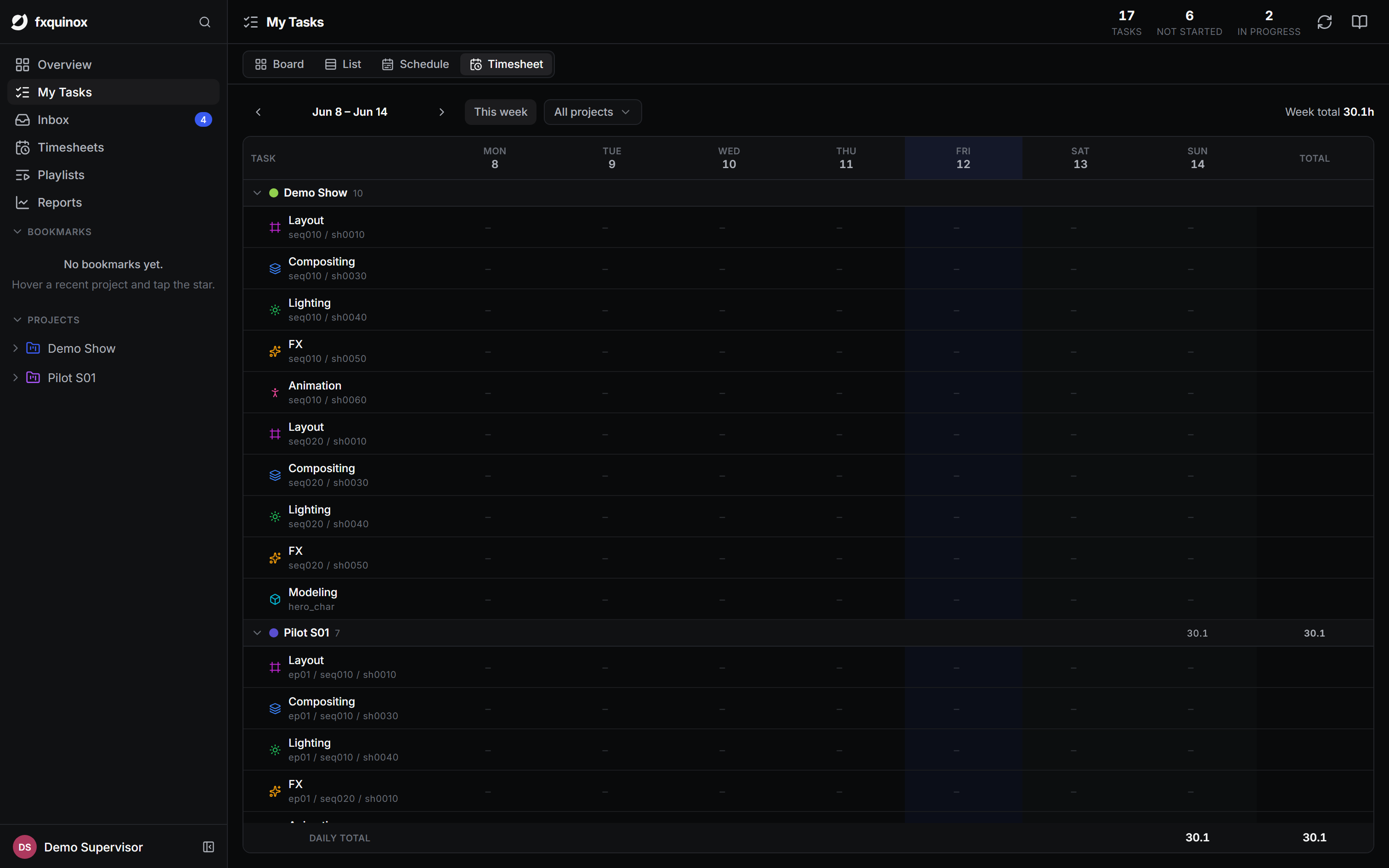
- Timesheet — a weekly grid for logging time: enter the hours you spent per task per day, with daily and weekly totals.
The board in detail
The board's columns are fixed to the task statuses from the active workflow. The swimlane control (top bar) slices the board into horizontal bands:
| Swimlane | Groups rows by |
|---|---|
| None (default) | All tasks in one set of columns |
| Step | Each pipeline step gets its own band |
| Priority | Urgent → High → Medium → Low → None |
| Project | Each project gets its own band |
Each card shows the entity the task belongs to (the shot or asset), the task's step chip, due date and assignee avatar. Click a card to open its detail panel.
Working through your day
- Scan Waiting to Start and In Progress columns for what to pick up next.
- Click a task to open its context, brief and notes.
- Move it forward by changing its status as you go.
- When it is ready for feedback, set it to Pending Review and publish a version.
- Log the hours you spent in the Timesheet view or the task's Time tab.
Tip
The card shows the shot or asset it belongs to and its due date, so you can prioritise without leaving the board.
Team timesheets
Admins, Supervisors and Coordinators can see the whole team's hours in the Timesheets route (left rail). See tasks and scheduling.