Views and filters
Every screen shows the same underlying records; how you see and narrow them is up to you.
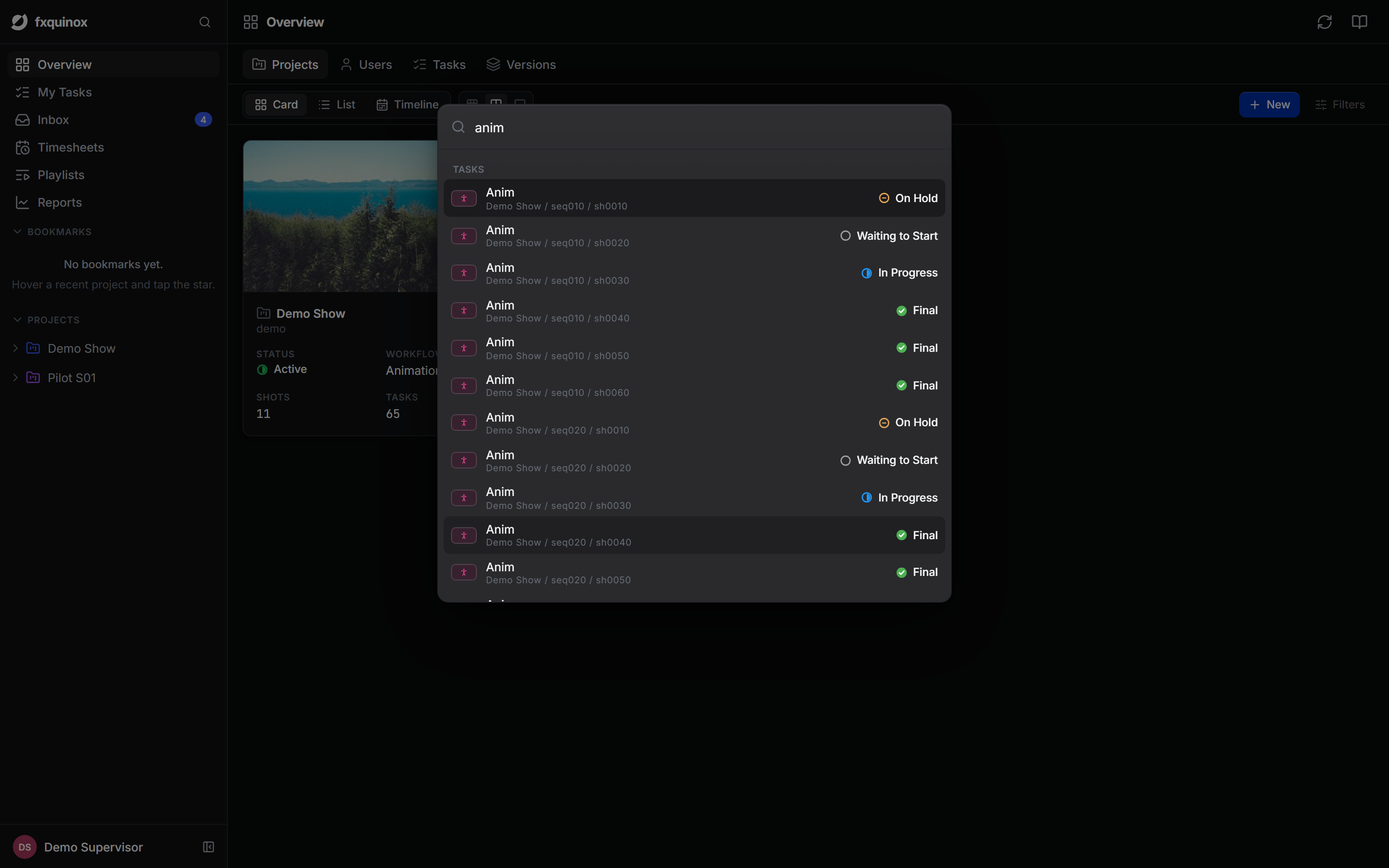
Command palette
Press Ctrl+K (or Cmd+K on macOS) from anywhere in the app to open the command palette. It searches across all entity types — Projects, Episodes, Sequences, Shots, Assets, Tasks and Users — and returns up to 40 results grouped by type. Each result shows a thumbnail, label, breadcrumb path and status pill. Use Up / Down to navigate and Enter to go; Esc closes without navigating.
Results are served from the same in-memory cache the views use, so the palette is instant when data is already loaded and does not fire extra network requests.
View modes
The view switcher in the top bar changes the shape of the current screen:
- Card — tiles, good for browsing projects, assets and versions.
- List — a dense, sortable table, good for scanning and bulk work.
- Timeline / Gantt — records against dates, good for scheduling. Bars drag to reschedule; hover the end of a bar to draw dependency arrows between tasks.
- Board — cards in status columns (on My Tasks), good for moving work along.
- Schedule — your tasks against their dates (on My Tasks).
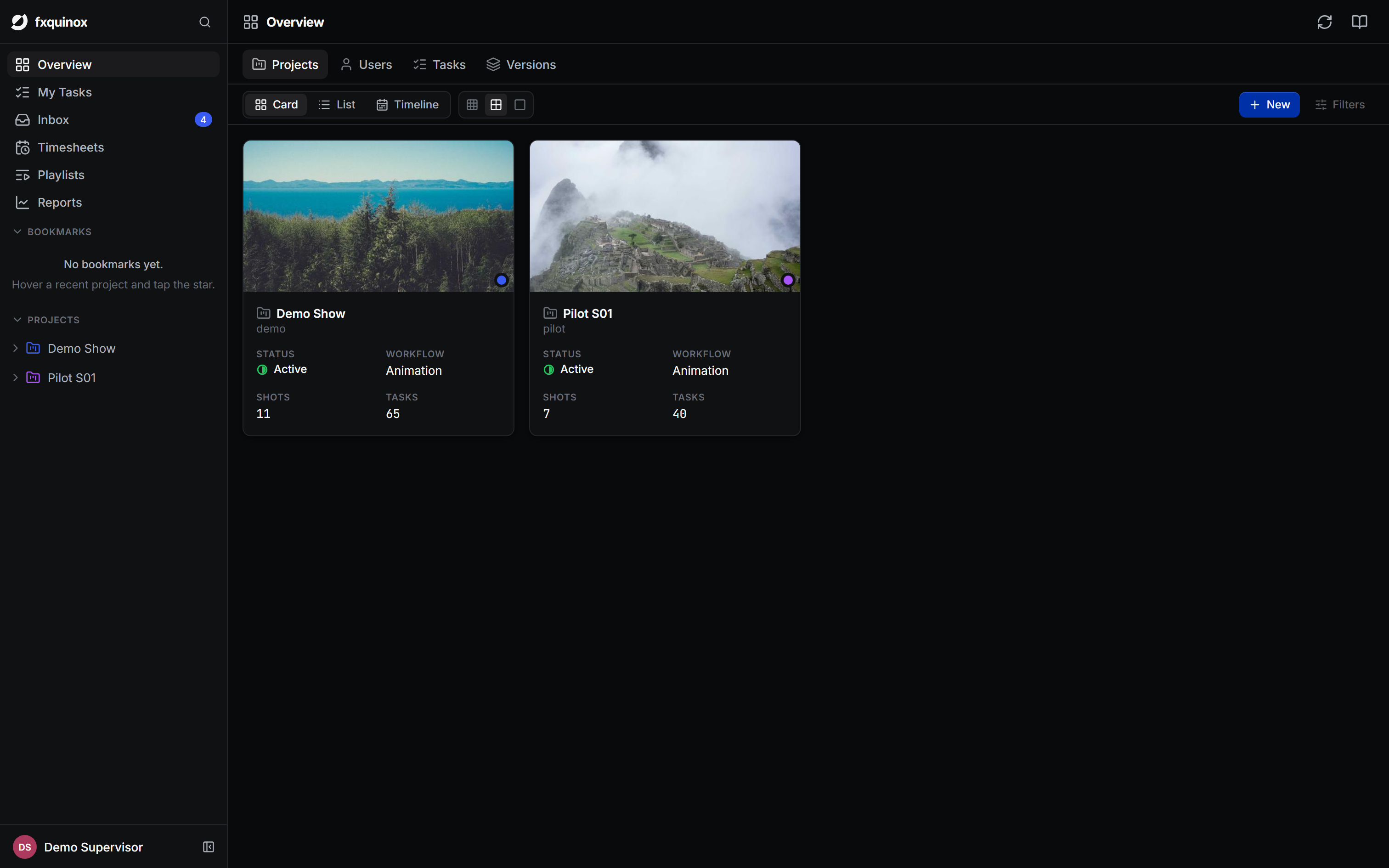
One model, many views
Most screens show the same records in different shapes. Use the view switcher in the top bar to flip between them without losing your place or filters.
Filters
The Filters button opens a builder for multi-condition queries: combine several conditions on status, step, assignee, priority, dates or any field in the schema, grouped with and / or, to narrow things precisely (for example my tasks, in the Lighting step, due this week). The button shows how many filters are active.
Filtering is powered by the same query engine the API and SDK use, so the web UI, scripts and integrations all narrow data the same way — see the query DSL.
Selecting and bulk actions
In grid and list views you can multi-select rows (click to select, with the usual range and toggle modifiers, or select all). With a selection active, a bulk action bar lets you act on everything at once — for example set the status of many tasks or delete several records in one step.
Deep links
Every entity detail panel is deep-linkable via URL parameters
(slideEntityType + slideEntityId). Share a URL and the recipient lands
directly on the same record with the detail panel open. The helper
detailUrl(path, type, id) builds these links throughout the app.
Saved views and bookmarks
- Saved views — once you've set up a useful combination of view mode, columns and filters, save it so you (or your team) can return to it.
- Bookmarks — star a project to pin it under Bookmarks in the left rail for one-click access.
Columns
In grid and Gantt views, use Task columns to choose which fields are shown, so the table carries exactly the information you need.