Versions, playlists and review
As work is published, each iteration is recorded as a version. Collecting versions into playlists, screening them in the review player, and routing feedback to artists all happen in one place.
Versions
The Versions tab (in a project, or globally from the dashboard) lists published versions as cards or a list.
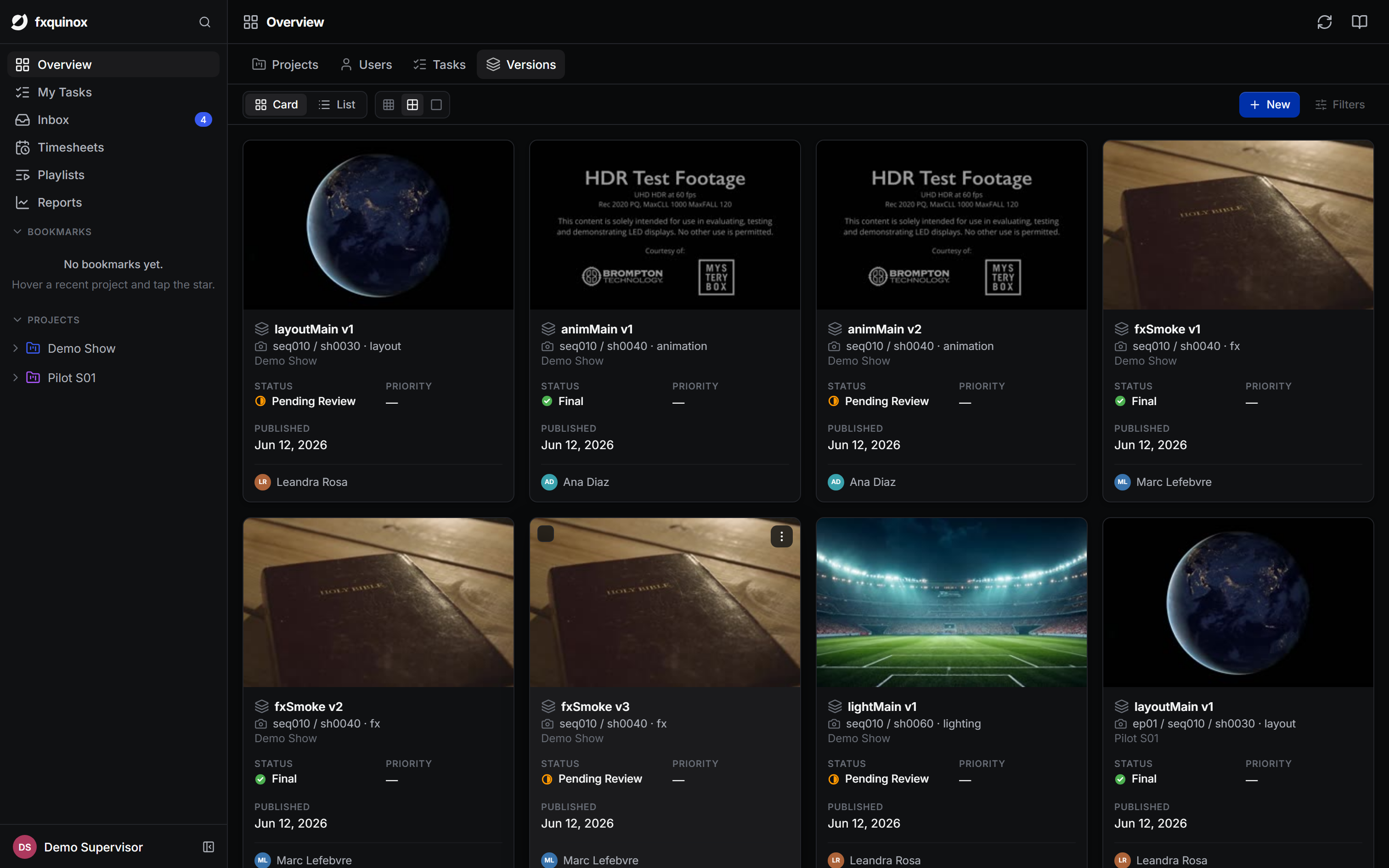
Each version belongs to a product (a named output of a task, such as
layoutMain) and carries its number, author, status and a comment. Versions
also record their inputs — the versions they were built from — so you can
trace lineage in both directions. See
the publish chain.
The detail panel: notes, info and activity
Click any record — a shot, asset, task or version — to open its detail panel. It has three tabs:
- Notes - the conversation. Write a note, @mention a teammate to pull them in, optionally tag it with a label, and post it. Notes are how feedback and direction are captured against the exact thing they're about. You can filter the thread by label, and mentioned or watching users are notified.
- Info - the record's fields and metadata.
- Activity - the history of changes (status moves, reassignments, edits).
Annotating a frame
For visual feedback, open a version in the review player and draw directly on the frame. These vector annotations are attached as notes, so a drawn correction lives in the same thread as written feedback and is pinned to the frame it refers to. Reviewers can scrub to a frame, mark it up, and post.
Playlists
A playlist is an ordered collection of versions assembled for a review session. Playlists live in the Playlists section of the left rail, grouped by project.
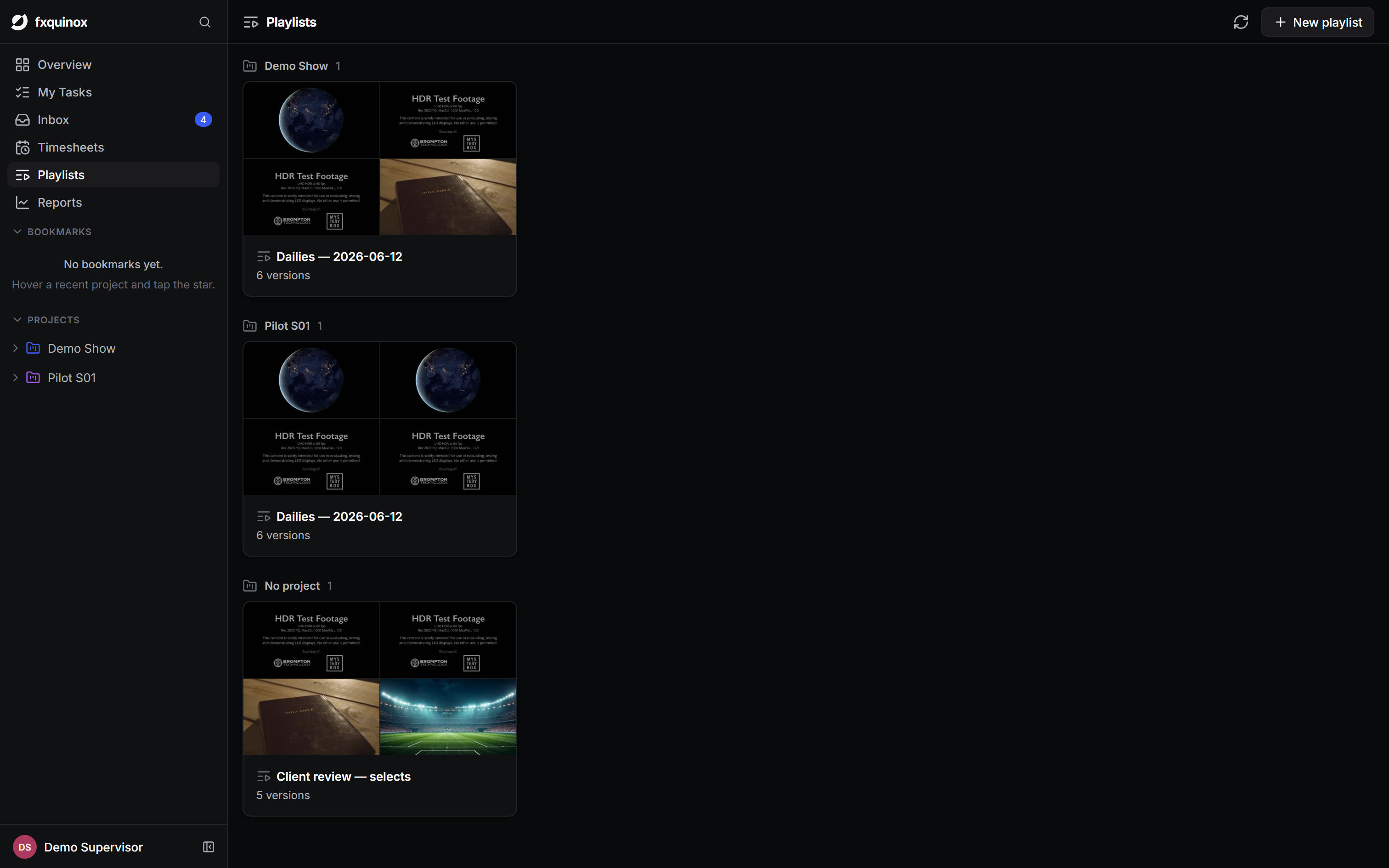
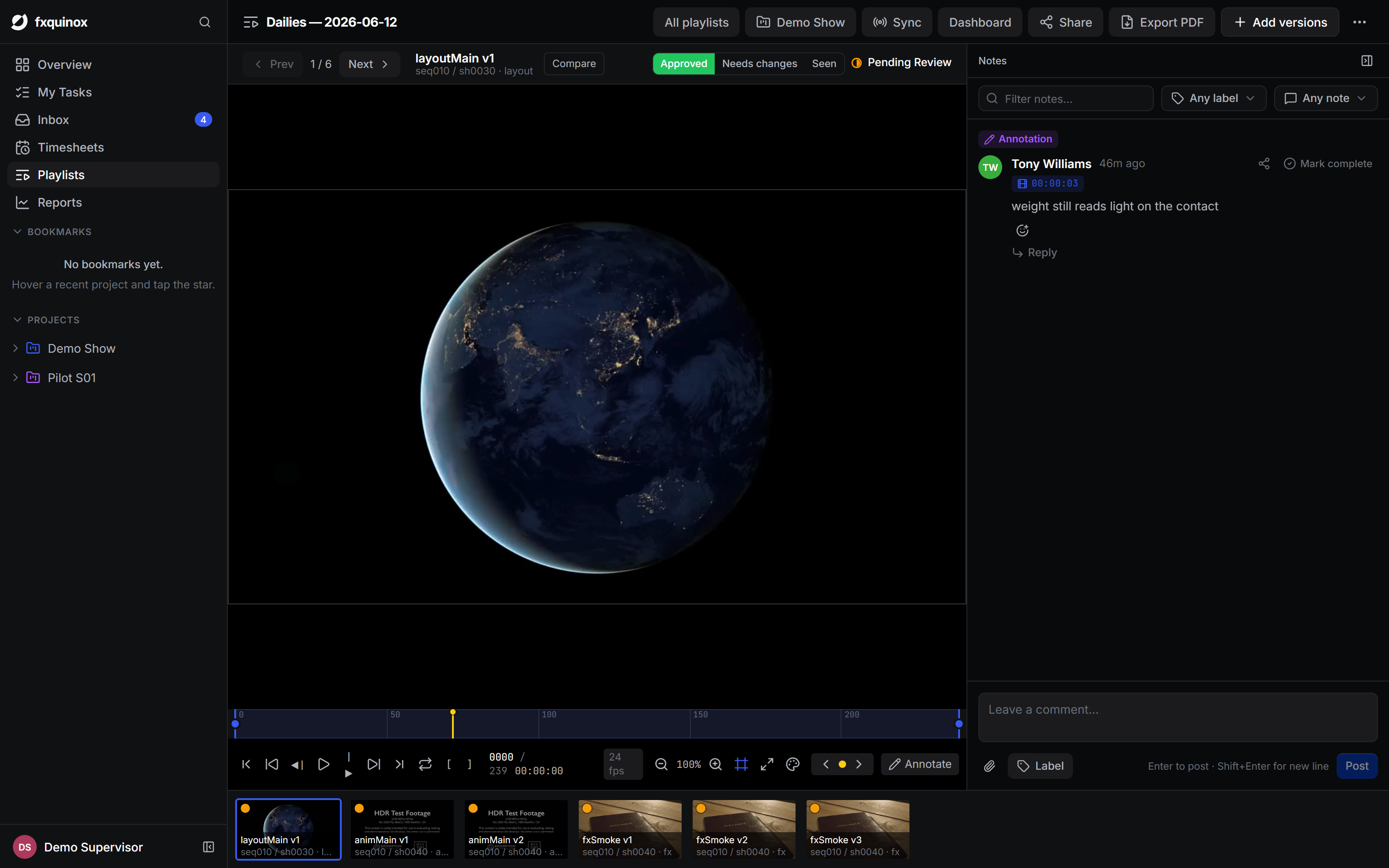
Create a playlist with New playlist, give it a name, then add versions via Add versions in the player toolbar. In the thumbnail strip at the bottom you can drag items to reorder them or remove individual versions with the × button. Use Page Down / Page Up or Alt+Right / Alt+Left to step through items during a session.
The review player
The full-screen review player opens when you enter a playlist:
- Notes panel — resizable (320–720 px) and collapsible. Notes thread per version; post a note with a label (approved, retake, etc.) and it appears in the same thread visible from the version's detail panel.
- Approval controls — each reviewer can mark any version Approved, Needs changes, or Seen using the toggle in the toolbar. The Approval dashboard (the chart icon) shows a per-item rollup: colour dots, approval counts, and who said what.
- Status control — change the current version's status directly from the player toolbar without leaving the session.
- Live sync — the Radio button starts a WebSocket session that broadcasts the current item, frame and play/pause state to all connected participants. A peer count is shown when sync is active.
Compare mode
When a playlist contains two or more versions, a Compare dropdown appears in the toolbar. Select any other version to enter compare mode; the player switches to one of three layouts:
| Mode | What it does |
|---|---|
| A/B | Flip between A and B on a keypress. |
| Wipe | A draggable split line divides A and B side by side. |
| Ghost | B is overlaid on A at an adjustable opacity (onion-skin). |
Both clips share a single timeline — A drives playback and B is locked to it, frame for frame. Press Esc or choose Exit compare from the dropdown to return to normal playback. Compare exits automatically when you switch to a different playlist item.
Compare keyboard shortcuts
Space play/pause · A A/B mode · W Wipe mode · G Ghost mode · F flip A↔B · Esc exit compare.
Sharing a playlist with clients
The Share button in the player toolbar generates a public share link
(/review/<token>) and copies it to the clipboard. The link is unguessable and
can be revoked at any time.
Recipients open the link with no login required. They see the playlist's versions and existing annotations (read-only), and can leave feedback directly:
- Enter a display name (remembered in the browser).
- Type a comment.
- Click Approve or Needs changes to record their verdict.
Guest notes and approvals are posted via the share token and appear alongside internal reviewer notes in the playlist.
Exporting a review report
The Export PDF button downloads a formatted report of the playlist: version thumbnails, statuses, approval results and all notes, ready to send or archive.
A typical review loop
- An artist sets a task to Pending Review and publishes a version.
- A supervisor opens the version (or the shot's detail panel) and leaves notes with labels such as approved or retake.
- For a formal session, the supervisor adds the version to a playlist, steps through it in the review player, and records per-version approvals.
- The status moves to Final on approval, or back to In Progress for a retake — and the next version starts the loop again.