Tasks and scheduling
A task is a unit of work on a shot, asset or other production entity — one pipeline step (Layout, Animation, FX, Lighting, Compositing, and so on) with assignees, a priority, a status, bid hours and dates.
The Tasks view
Open a project and browse with the scope set to Tasks, or use the Hierarchy, Shots or Assets scopes to see tasks in context. The Gantt pane (toggle with the toolbar button) plots every task against a timeline.
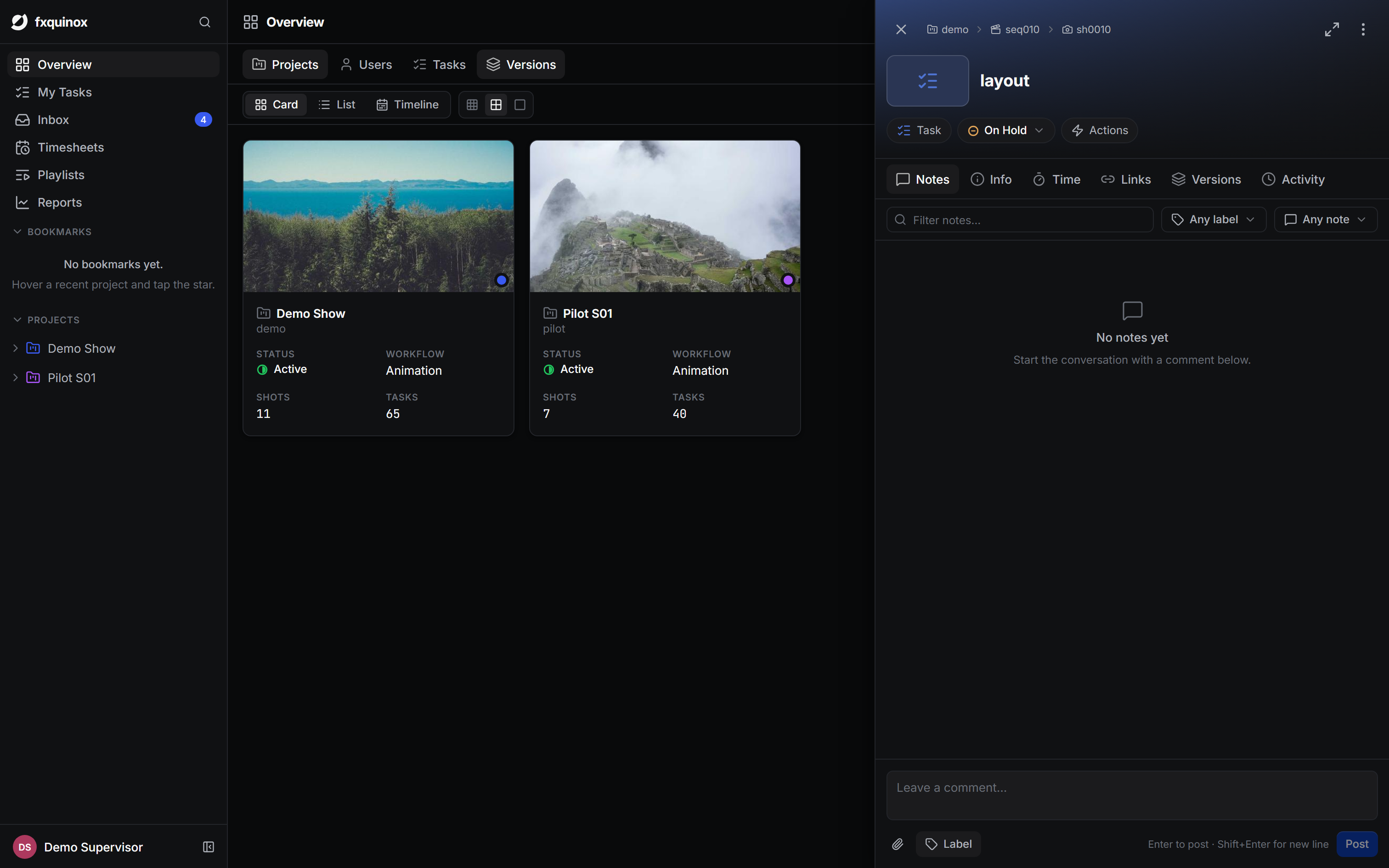
Each row shows the task's step, status, assignee and schedule (Start / Due). Status chips are colour-coded so progress reads at a glance.
Updating a task
- Change status — click a task's status chip and pick the new one. The available statuses come from the project's workflow schema. The typical task flow is: Waiting to Start → In Progress → Pending Review → Final. On Hold and Omitted are also available as needed.
- Reassign — set or change Assignees (multiple users supported).
- Reschedule — edit Start / Due in the detail panel, or drag the bar directly on the Gantt.
- Set a bid — enter the estimated hours in the Bid field. Bid vs actual rolls up into Reports.
- Add dependencies — in the Gantt, hover a bar's end dot and drag to another task to record a dependency. Dependencies are shown as SVG arrows; click one to remove it.
The detail panel
Click any task row to open its detail panel. It has tabs for:
- Notes — the conversation thread. Write a note, @mention a teammate to pull them in, tag with a label. Mentioned and watching users are notified.
- Info — all the task's fields and metadata, editable inline.
- Time — log hours against this task (see Logging time) and view the bid-vs-actual bar.
- Links — outgoing entity links from this task.
- Versions — published versions produced by this task.
- Dependencies — the tasks this task depends on and the tasks that depend on it.
- Activity — the full change history (status moves, reassignments, edits).
Logging time
Each task can carry a bid (estimated hours). As you work, log the hours you spend against it on the day you spent them. fxquinox tracks bid vs actual so coordinators can see where estimates and reality diverge.
Log time in two places:
- My Tasks → Timesheet — a weekly grid of your tasks across every project, with daily and weekly totals. Enter hours directly in the cells.
- Task detail panel → Time tab — log hours and see the bid-vs-actual bar for that specific task.
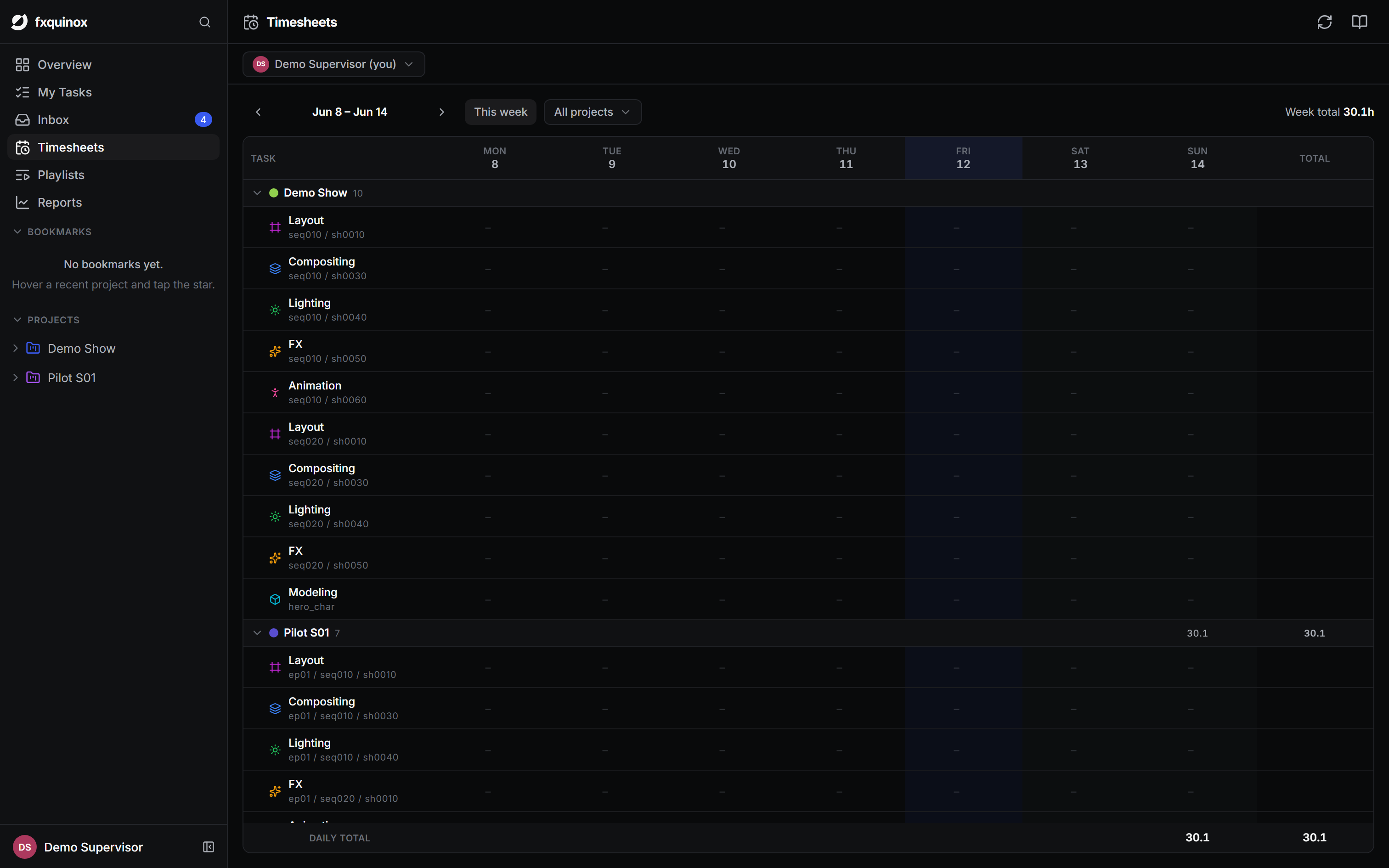
The Timesheets route (left rail) is the privileged team view — Admins, Supervisors and Coordinators can switch between people and filter by project. Bid vs actual rolls up into Reports.
Undo
Most status changes and field edits are undoable. Press ⌘Z (or Ctrl+Z) to reverse the last action. A toast confirms what was undone.
Filter to what matters
Use Filters in the toolbar to focus any view — for example only your tasks, only one step, or only what is in review. See Views and filters.