Notifications and watching
fxquinox keeps you informed about the work that concerns you, so you don't have to go looking for changes.
Your notifications
You receive a notification when:
- someone @mentions you in a note,
- a task is assigned to you, or
- the status of a record you watch changes.
Open Inbox in the left rail — it shows an unread count — to see what's new. Clicking a notification marks it read and opens the record in a slide-over panel without leaving the current screen.
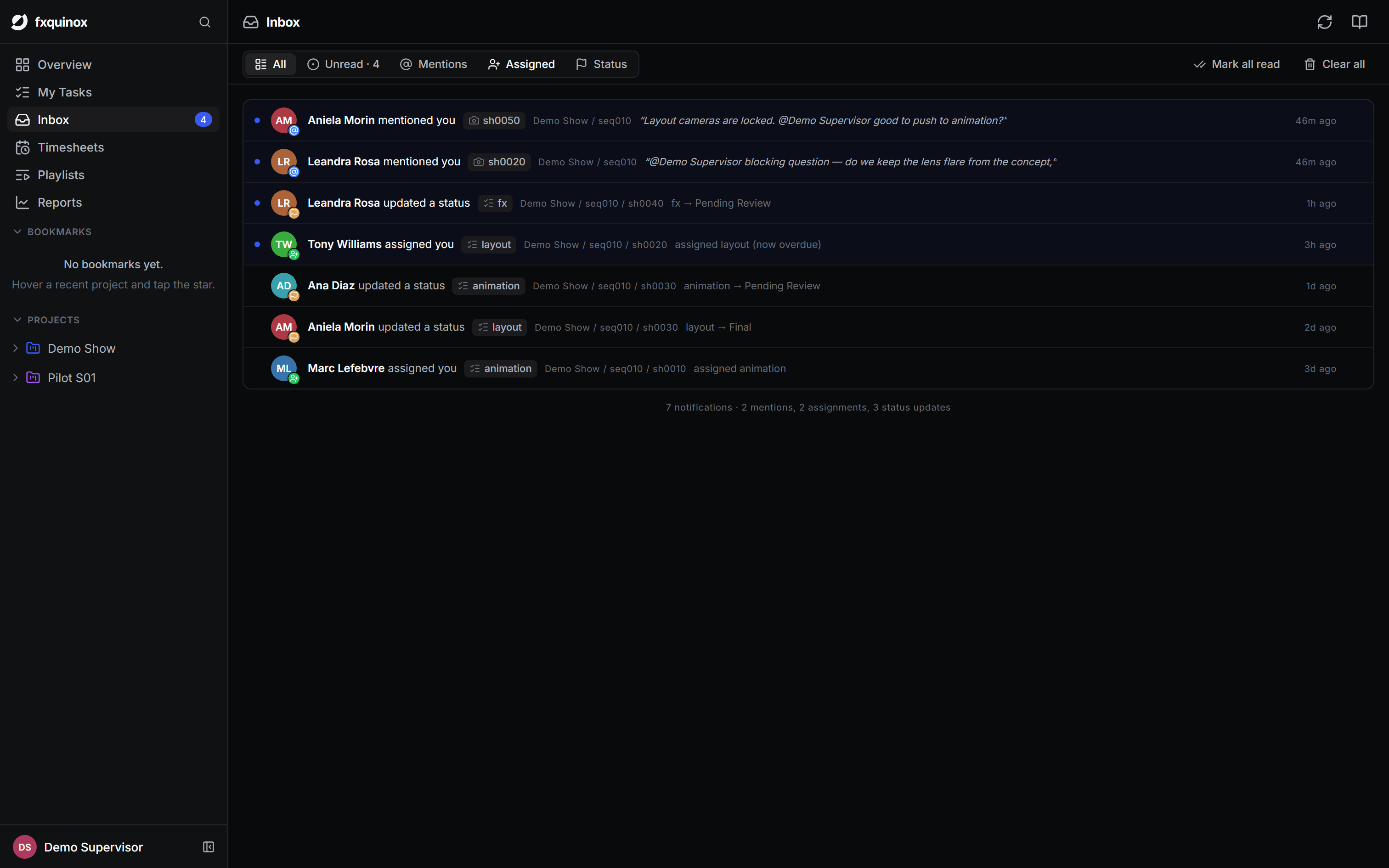
Navigating the Inbox
A filter bar at the top of the Inbox segments notifications by kind:
| Tab | Shows |
|---|---|
| All | Every notification, with a footer count broken down by kind. |
| Unread | Only unread items (the count matches the badge on the rail). |
| Mentions | Notes where you were @mentioned. |
| Assigned | Tasks newly assigned to you. |
| Status | Status changes on records you watch. |
Each item shows the actor's avatar with a kind badge (blue @ for mention, green person-plus for assignment, amber flag for status change), the actor's name, a chip for the affected entity, the breadcrumb path, a message excerpt, and a relative timestamp. Unread items have a blue accent background and a dot in the left column.
Managing notifications
- Dismiss one — hover an item and click the × button to remove it immediately (optimistic, no page reload).
- Mark all read — clears the unread state on every item in one click.
- Clear all — removes all notifications from the feed.
Watching
Watch any record (a shot, asset, task or version) to follow it. From then on, changes to it — including status moves — show up in your Inbox, even if you're not assigned. Toggle watching from the record's detail panel.
Assignees and people @mentioned on a record are added as watchers automatically, so the right people are always in the loop.
Mention to pull people in
Type @name in a note
to bring a teammate into the conversation. They'll be notified and added as a
watcher, so the thread stays with the people who need it.