Projects
A project is the top of the tree. Everything else — episodes, sequences, shots, assets and their tasks — lives inside one.
The Overview
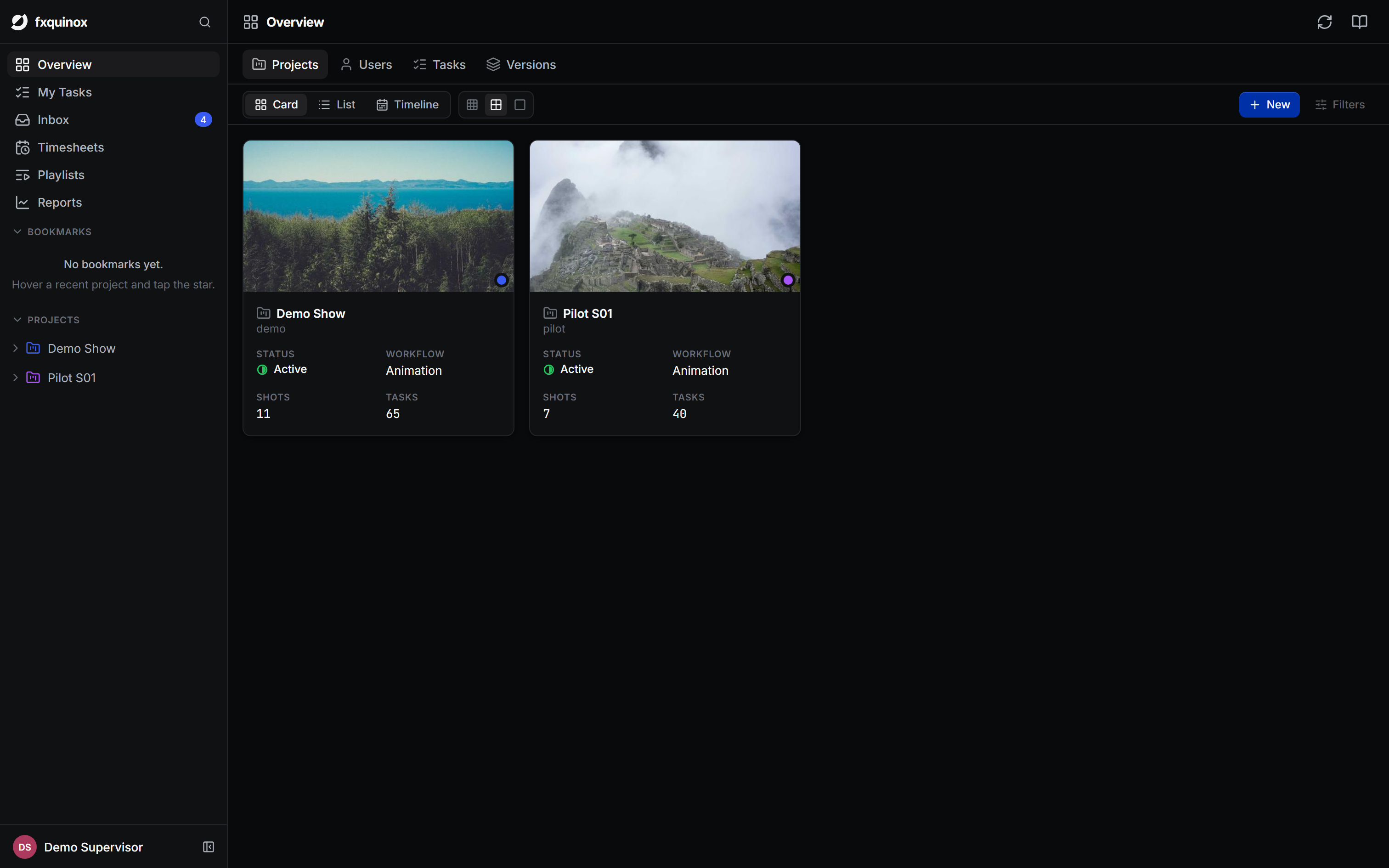
Overview in the left rail is the studio dashboard. It has four global tabs that span all projects:
- Projects — every project as a card (or list, or timeline) showing its status, shot and task counts.
- Users — all users with their assigned tasks.
- Tasks — every task across every project, groupable and filterable.
- Versions — all published versions studio-wide.
The Projects tab offers three sub-views: card (default), list and timeline. Click any project card to open that project's workspace.
Inside a project
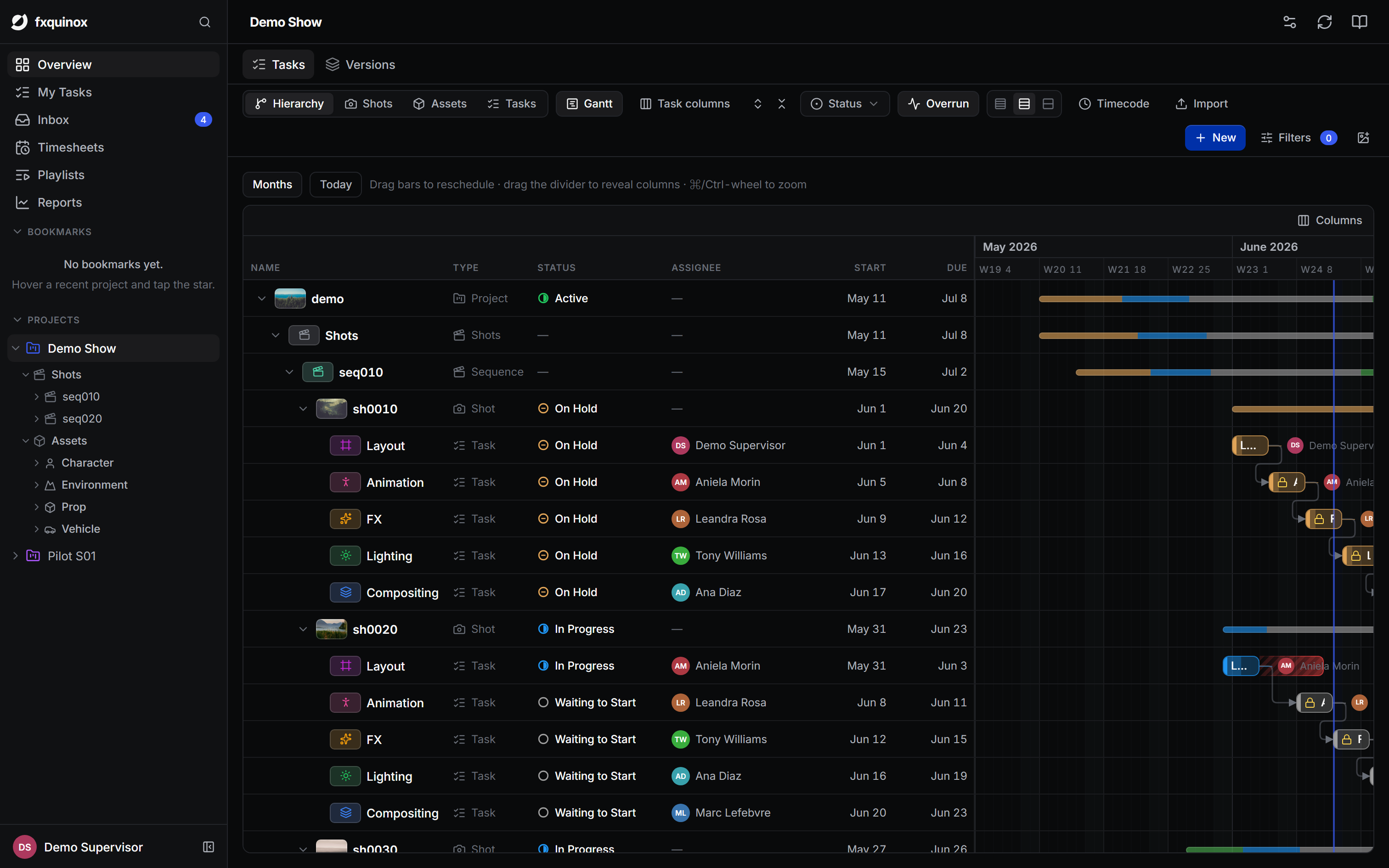
A project opens on its Tasks tab (the hierarchy + Gantt). Switch to the Versions tab to see all published versions for that project.
Within the Tasks tab you can browse the contents in four scopes:
- Hierarchy — the full nested tree (episode → sequence → shot, plus assets), with tasks folded into per-step columns or shown inline.
- Shots — just the shots, flat.
- Assets — just the assets (Character, Creature, Environment, Prop, Vehicle and any custom types your schema defines).
- Tasks — every task in the project as a flat list.
The Gantt
All four scopes can display a Gantt pane to the right of the tree. Toggle it with the Gantt button in the toolbar. Bars show each task's scheduled window:
- Drag a bar left or right to reschedule it.
- Hover a bar's end dot and drag to draw a dependency arrow to another task. Dependencies are stored on the task and drawn as SVG arrows; click an arrow to remove it.
- ⌘-scroll (or Ctrl-scroll) to zoom the timeline.
- An overrun indicator appears as a red gradient beyond the end date for tasks that are not yet done.
Task columns
Enable Task columns from the toolbar to fold each shot or asset's tasks into per-step columns, ftrack-style, instead of expanding them as child rows.
Creating things
- New in the toolbar adds a record — a project from the dashboard, or a sequence, shot, asset or task from inside a project.
- Import brings in records in bulk from a CSV or structured file.
Deep-link into a project
URLs are fully deep-linkable. Opening a record's detail panel updates the
URL with slideEntityType and slideEntityId query params, so you can
share or bookmark the exact panel state.
What can exist is defined by the schema
The entity types, fields, statuses and pipeline steps you see are not hard-coded — an admin defines them in Settings. See How it works for the model behind it.